
5 Common Barcode Scanning Mistakes That Slow Down Retail Inventory
Barcode scanning is meant to make retail inventory faster and more accurate. When it doesn’t, the cause is rarely the barcode itself.
More often it is a small, fixable mistake: a scanner that doesn’t match your codes, labels that print poorly, inconsistent product data, or a scanning routine nobody has standardized. Each one adds seconds, errors and rework to every count, delivery and sale.
This guide covers five of the most common mistakes and how to correct them.
Not sure what’s slowing your stock counts down? Describe your setup to our team and we will help you find the weak point.
Why Scanning Problems Hurt Retail Inventory
In a store or stockroom, a barcode scan is the moment a physical item becomes a data record. If that step is slow or unreliable, the effects spread:
- Receiving takes longer and stock reaches the shelf later
- Stock counts need re-scans and manual corrections
- Records and shelf quantities stop matching
- Staff lose confidence in the system and work around it
Fixing the scanning step usually improves everything downstream of it.
The 5 Most Common Barcode Scanning Mistakes
Mistake 1: Using the Wrong Type of Scanner
Not all scanners read all codes. A 1D (linear) scanner reads traditional barcodes only. A 2D imager can read linear barcodes as well as 2D codes such as QR codes and Data Matrix.
Problems appear when a store adds QR codes, mobile coupons or 2D labels but keeps older scanners, or when a basic scanner is used all day in a busy retail environment it wasn’t built for.
The fix: match the scanner to the codes you actually read and to the pace of your work. If you are unsure of the difference, read our guide to 1D vs 2D barcode scanners, or browse our 2D and QR scanners.
Mistake 2: Poor Labels or Mismatched Label Printing
A scanner can only read what it can see. Labels that are faded, smudged, creased, too small, or printed with too little contrast cause repeated failed scans.
Common causes include the wrong label material for the job, worn print heads, and barcodes squeezed against text or edges with no blank margin around them. Barcodes need clear space around them, often called a quiet zone, to be read reliably.
Label type matters too. Direct thermal labels print with heat alone, with no ribbon, while thermal transfer labels use a ribbon to print. Direct thermal prints can fade over time with heat and light, so the right choice depends on how long the label must stay readable.
The fix: choose label stock and ribbons that suit the printer and how long the label must last, keep print heads clean, and check print quality regularly. See our direct thermal labels, thermal transfer labels, wax ribbons and thermal label printers.
Mistake 3: Messy or Inconsistent Barcode Data
Even a perfect scan fails if the system doesn’t know what the code means. Typical data problems include:
- Two different products sharing one barcode
- One product carrying several barcodes that aren’t linked
- Size, colour or variant options that aren’t set up separately
- Items scanned that don’t exist in the inventory system yet
Staff then resort to typing codes by hand, which is slow and error-prone.
The fix: give each sellable item and variant its own code, link supplier barcodes and in-house barcodes to the right product, and add new items to the system before they reach the shop floor.
Mistake 4: No Standard Scanning Routine
When every employee scans differently, results vary. Common habits that slow things down include:
- Skipping the scan at receiving and counting later
- Not confirming that each scan registered
- Scanning at awkward angles or through glare and plastic wrap
- Counting the same area twice, or missing an area entirely
The fix: write a short, simple routine for receiving, put-away, counting and returns, train every team member on it, and make sure everyone knows how to confirm a successful scan.
Mistake 5: Scanners That Aren’t Connected or Ready to Work
Hardware that is dead, disconnected or out of reach causes delays that look like “slow scanning”. Examples include:
- Wireless scanners with flat batteries and no charging cradle
- Wi-Fi dead spots in the stockroom
- Scanners that don’t feed data straight into the inventory or POS system
- No spare device when one breaks or is mislaid
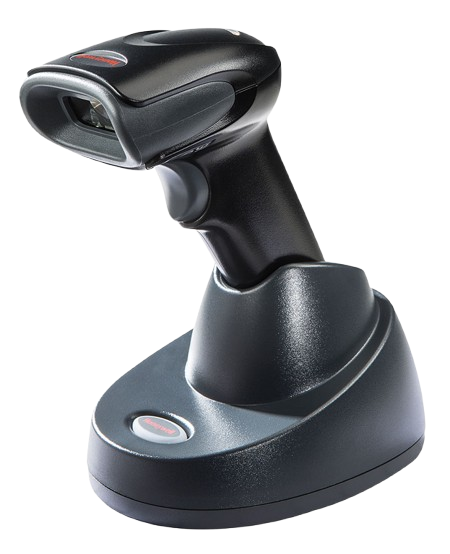
The fix: keep scanners charged in cradles, check Wi-Fi coverage where you scan, connect devices directly to your inventory or POS software, and keep a spare. Wireless models such as the Honeywell Voyager 1472g are offered with a USB cradle kit, and we also stock mobile computers for scanning on the move.
Quick Reference: Symptom, Likely Cause and Fix
| What you notice | Likely cause | Where to look |
|---|---|---|
| Scanner won’t read some codes at all | Scanner type doesn’t match the code | Mistake 1 |
| Codes read slowly or only after several tries | Faded, damaged or low-contrast labels | Mistake 2 |
| Scan works but the wrong item appears | Duplicate or unlinked barcode data | Mistake 3 |
| Counts differ between staff members | No shared scanning routine | Mistake 4 |
| Scanner dies or loses connection mid-shift | Charging, Wi-Fi or integration problems | Mistake 5 |
Need the right scanner, labels or printer for your store? Tell us what you scan and how many items you handle, and our team will recommend a setup.
A Simple Barcode Scanning Checklist
Use this list to audit your current setup:
- Do your scanners read every code type you use, including QR codes?
- Are labels sharp, undamaged and printed with clear space around the barcode?
- Do your label stock and ribbons suit your printer and how long labels must last?
- Does each product and variant have its own correct barcode in the system?
- Is there a short written routine for receiving, counting and returns?
- Is every team member trained on that routine?
- Are wireless scanners charged and covered by Wi-Fi where they are used?
- Do scans update your inventory or POS system directly?
- Do you have a spare scanner ready?
Conclusion
Slow, unreliable retail inventory is usually the result of several small scanning problems rather than one big one: the wrong scanner, weak labels, messy product data, an inconsistent routine, or hardware that isn’t ready to work.
Fixing these one at a time is inexpensive compared with the cost of constant recounts and mismatched stock, and each improvement makes the next one easier.
If you want help choosing scanners, labels or printers that fit how your store works, Pointus Solutions can advise and supply the full setup.
Ready to Speed Up Your Retail Inventory?
Tell Pointus Solutions about your store or warehouse and we will recommend the right barcode hardware, configured and ready to deploy.
Barcode Scanning in Retail, Answered
A 1D scanner reads traditional linear barcodes only. A 2D scanner, or imager, reads linear barcodes as well as 2D codes such as QR codes and Data Matrix.
Common reasons include a scanner that doesn’t support that code type, damaged or faded labels, low print contrast, missing blank space around the barcode, and glare or plastic covering the label.
Direct thermal labels are printed with heat alone and need no ribbon, but the print can fade over time with heat and light. Thermal transfer labels are printed using a ribbon, which is a better fit when labels must stay readable for longer.
Wireless scanners are useful for stock counts, receiving and larger stores because staff can move freely. They need charging cradles and good coverage where they are used, so plan for both.
It can, for example a supplier barcode and an in-house barcode. The problem comes when those codes aren’t linked to the same product in your inventory system, which leads to duplicate records and mismatched stock.
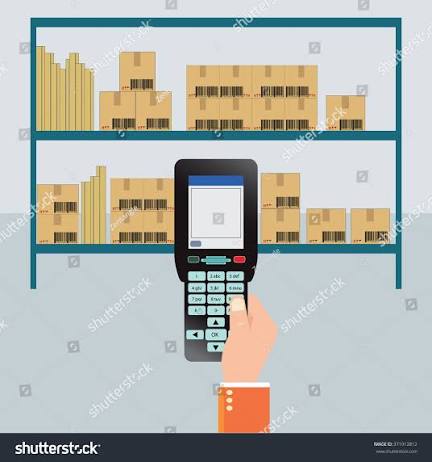
A scanner is enough where it simply feeds codes into a connected system, such as at a checkout. A mobile computer combines scanning with a screen and software, which suits stock counts and receiving away from a desk.
Pointus Solutions, based in Hawally, Kuwait, supplies barcode scanners, labels and ribbons, label printers and mobile computers. Contact the team on +965 9742 3453 or WhatsApp.